> For the complete documentation index, see [llms.txt](https://elessi-docs.nasatheme.com/llms.txt). Markdown versions of documentation pages are available by appending `.md` to page URLs; this page is available as [Markdown](https://elessi-docs.nasatheme.com/common-issues-and-faqs/faq-guides/how-to-add-block-beside-main-menu-in-header-type-4-6-8-popup-static-block.md).
# How to add Block beside Main menu in Header Type 4, 6, 8 - Popup Static Block
This guide will walk you through the steps to set up a static block beside the main menu in Header Type 4, 6, or 8 using the Popup Static Block feature.
**Step 1** - **Access Theme Options**
First, go to your **Theme Options** page, then navigate to **"Header Global"**.\
Make sure you're using **Header Type 4, 6, or 8** — this feature is only supported with these header types.\
If you're using another header type, the related options will **not** be displayed.
**Step 2**** - Prepare the Blocks**
You will need to create **two separate blocks**:
1. **Block beside the header** – This block will be displayed next to the main menu.
2. **Popup block** – This block will appear in the popup when the user interacts with the beside-header block
You can create these blocks using either **Elementor** or **WPBakery Page Builder**.
* **Using Elementor:**\
Create a custom block via Elementor (e.g., via Templates → Saved Templates).
* **Using WPBakery:**\
Go to **Static Blocks** and add a new block.
Repeat the same process to create the **Popup block**.
**Step 3**** - Configure in Theme Options**
Once both blocks are created, go back to:\
**Theme Options → Header Global**.
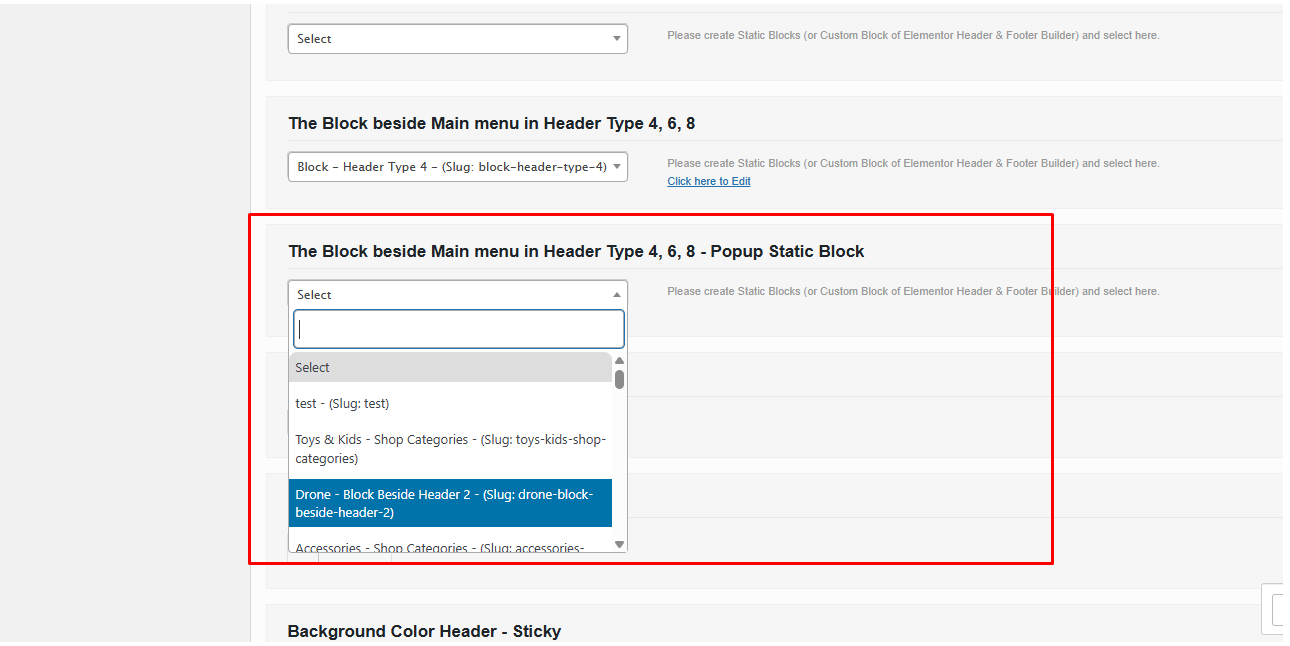
Scroll down to the **"Addon Options"** section and follow these steps:
* Chose **"Beside Header Block"**.
* Chose **"Popup Header Block"**.\
**"The Block beside Main menu in Header Type 4, 6, 8 - Popup Static Block"**,\
select the popup block you just created.
* Click **Save** to apply your settings.
Now you’ve successfully set up a block beside the main menu with a popup static block in Header Type 4, 6, or 8.\
\
**Note for Older Theme Versions (Manual Import)**
If you are using an older version of the theme and the demo content was **not imported automatically**, you can **manually import** the required blocks using the following `.json` files:
**For Elementor Users:**
You can import these files via **Elementor → Templates → Import Templates**.
* **Beside Header Block:**
{% file src="/files/G9t7yIEomchYvtDNhP1B" %}
Drone - Block Beside Header
{% endfile %}
* **Popup Static Block:**
{% file src="/files/JwyvLzRfATvpHOGDH3g8" %}
Drone - Popup Block
{% endfile %}
***
**For WPBakery Users:**
If you're using WPBakery and want to import a block manually without using the import tool, follow these steps:
1. **Go to:**\
`Static Blocks → Add New` to create a new block.
2. **Switch to Classic Mode** in the WPBakery editor.
3. **Click on the “Text” tab** (not "Visual") in the Classic Editor.
4. **Copy the content** from the provided `.txt` or `.html` file (this contains the shortcode-based layout or raw HTML).
5. **Paste the entire content** into the editor.
6. **Publish** the block.
* **Beside Header Block:**
{% file src="/files/fxZPIlepL9UWCREsa2ej" %}
Drone - Block Beside Header
{% endfile %}
* **Popup Static Block:**
{% file src="/files/yN3g4q3kSVG6rzskoA2i" %}
Drone - Popup Block
{% endfile %}
Make sure the imported blocks are published and then follow **Step 3** from the main instructions to assign them in **Theme Options → Header Global**.